
Apple Watch / Version 2.2.0
Your first match, from your wrist.
Get connected, switch on the permissions your statistics need, and learn the controls before kick-off.
1. Connect before you leave home
- Update penalty.app on your iPhone and check that Penalty is installed and updated on your paired Apple Watch.
- Sign in on your iPhone, then open Penalty on your Watch. Keep the phone nearby while the connection completes.
- If the Watch shows a pairing code, enter it in penalty.app → Settings → Apple Watch.
- Choose your fixture on the Watch, or create a quick match. Check the teams, colours, period length and competition settings before starting.
Do this before your first match / Pro fitness stats
The clock works. But are your stats recording?
Apple Health and location are separate permissions. You can time a match while heart rate, distance or your GPS track is missing. Check both before kick-off.
First, turn recording on: in Penalty on your Watch, open Settings → Workout → On. Fitness recording requires Pro. With Workout off, sensors are not collected and the full Health/location permission requests are not shown, even if you have already allowed access elsewhere.
Apple Health
- Accept the Health permission request when you first open the Watch match list.
- Allow writing Workouts and Workout Routes, and reading Heart Rate and Walking + Running Distance.
- Already refused? On iPhone, open Health → your profile → Apps → Penalty and review the switches. Depending on iOS, the apps list may appear under Privacy or Sharing.
- Return to Penalty on the Watch and use Check again in the Health help screen. Changes can take a few moments to reach the Watch.
Location & GPS
- When Penalty asks for location, choose While Using the App.
- On Apple Watch, open Settings → Privacy & Security → Location Services.
- Check that Location Services is on. Review Penalty’s access and enable Precise Location where shown.
- Try your next recording outdoors. A missing GPS track does not necessarily mean the match failed to save.
| Statistic | What to check |
|---|---|
| Heart rate | Health read access to Heart Rate |
| Distance | Health access to Walking + Running Distance |
| Route map | Location, precise GPS fixes and workout route access |
Still missing data? The Watch can check workout write permission, but Apple does not tell apps whether every Health read permission was granted. Review the individual switches even if the Health warning has disappeared. Enabling access later cannot recreate samples that were never recorded.
2. Learn the swipes
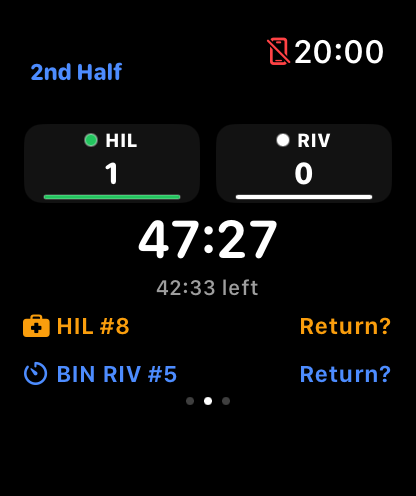
Try the new navigation
Start at the clock
Your score, match time and player return reminders stay together.
Real app screens with sample data. The gesture marker is an illustration. Select any screen to pause.
3. Manage player timers
Use the IFAB tools only where your competition applies the relevant protocols. You decide exceptions and authorise entry; an alert is a reminder.
Injury: one minute
From the clock, swipe right, choose Injury, then the team. At the restart, Resume +1m starts the waiting minute. It keeps running through later stoppages. Use Active timers to add a shirt number and acknowledge the return.
Substitution: exit 10s
Choose Exit 10s and the team at your signal. Judge whether the exit was on time. Confirming a late exit prepares a minute from the restart. After it expires, confirm the next stoppage before recording entry.
Sin bins
Enable sin bins in match setup. A player’s first C2 dissent caution starts the configured timer. It uses playing time, so pauses affect it differently from an injury minute. Acknowledge the return when served.
4. Pause, finish and save
- A temporary stoppage
- Tap the main clock to pause. Use +10s if needed, then Resume when play restarts.
- The final whistle
- Open Time → Match options → End period and confirm. Once the match is complete, choose Save & sync. If offline, check for Saved on your watch; it will sync when connected again.
- An abandoned match
- Open Time → Match options → More options → Abandon match. Check the confirmation, then add the reason on your phone.
- A match started by mistake
- Open Time → Match options → More options → Stop & leave. This discards the recording, including the workout. Use it only when you do not want a saved match report.
Free includes the score, match clock and stoppage controls. Detailed events and fitness statistics require Pro. After syncing, open the match in penalty.app and check its Stats tab.
Screens show sample match data. Apple settings labels can vary by iOS and watchOS version.